
The drive INTEL SSDSA2CW080G3 has logged 282 CRC error(s) on its SATA interface. These are bus-level transmission errors and indicate a connection problem, not a fault with the drive itself. Common causes are a loose, damaged, or low-quality SATA cable, a faulty SATA port, or a flaky backplane or drive sled. The counter is cumulative over the drive's whole lifetime, so these errors may be years old and come from an issue that has long been resolved.
If the count is still increasing, reseat the SATA data cable, try a different SATA port, and replace the cable if errors continue to accumulate.
Your RAM is currently operating at a lower frequency than it was designed for. It is running at 1333.2 MT/s, while its rated speed is 1778 MT/s.
This doesn’t cause issues, but you may miss out on some performance.
Enabling the proper memory profile (XMP/EXPO/DOCP) in the BIOS usually restores the RAM to its intended speed. It’s optional, but adjusting this setting can help your system run a bit faster.
Your RAM is not running in dual-channel mode. This isn’t an issue, but you could gain some extra performance with the proper configuration.
If you have two modules, placing them in the correct slots on the motherboard usually enables dual channel. If you only have one module, adding a second one will activate it automatically.
No graphics driver is installed for your graphics card. Windows is currently running on its generic display driver.
Without the manufacturer's driver, 3D acceleration is unavailable: games and GPU-accelerated applications cannot start, video playback is degraded, and the display may be limited to a low resolution.
Download and install the latest driver from your GPU manufacturer's website (NVIDIA, AMD or Intel) to restore normal operation and full performance.
Windows reports 1 device(s) that are not working correctly. A device in this state is either unavailable or running in a degraded mode, and Windows will keep retrying it at every boot.
This usually comes from a driver that failed to load or was stopped after an error: a bad or outdated driver, a device that is not seated properly, or a component that is starting to fail.
Open the Device Manager to see which devices are flagged, then reinstall or update their drivers from the manufacturer's website. If a device keeps failing after a clean driver install, reseat it and test it on another port or slot. The Drivers button in the Software section lists every affected device.

Scan this QR code
To open this page on your phone
CPU clocks
Last sample and peak over the test, values in MHz
| Clock | Current | Peak |
|---|---|---|
| Cores | ||
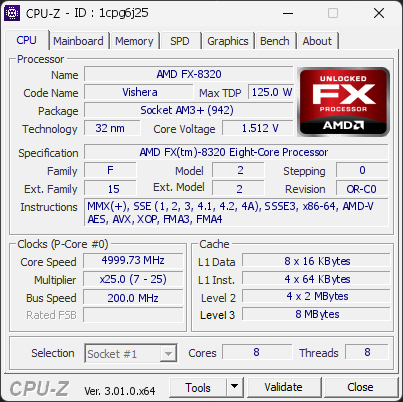
| #0 | 4999.73 | 4999.73 |
| #1 | 4999.73 | 4999.73 |
| #2 | 4999.73 | 4999.73 |
| #3 | 4999.73 | 4999.73 |
| #4 | 4999.73 | 4999.73 |
| #5 | 4999.73 | 4999.73 |
| #6 | 4999.73 | 4999.73 |
| #7 | 4999.73 | 4999.73 |
| Uncore / BCLK | ||
| Uncore | 2199.88 | 2199.88 |
| CPU BCLK | 199.99 | 199.99 |
Previous validations from this PC
Unexpected crashes (BSOD)
No unexpected crashes (BSOD) recorded on this PC.
Boot Time details
Hardware errors (WHEA)
2 errors recorded in the Windows event log.
Cache error, level 2, data read, core 7
Cache error, level 2, data access, core 6
Driver problems
1 device needs attention.
Flagged processes
6 running processes, none flagged.
Inform a support service
If a partner support service is helping you with this PC, enter the service code they gave you to send them this validation. A valid service code is required.