
Your processor's power limits (PL1/PL2) appear to be set to an unlimited value. This means the CPU is allowed to draw as much power as it wants, with no enforced safeguard beyond what the cooling and voltage regulation can sustain. While this can unlock maximum performance, the processor may run hotter, consume more energy, and experience increased electrical stress over time.
This configuration is often applied automatically by motherboard manufacturers through performance-enhancing profiles. Even without any user changes, many boards ship with these limits effectively disabled by default.
We recommend reviewing your power limit settings in the BIOS or in the software provided by your motherboard. Restoring sensible PL1/PL2 values (typically aligned with the processor's rated TDP) can help lower temperatures, reduce power consumption, and extend the long-term reliability of your CPU.
2 device(s) have no driver installed, so Windows cannot use them at all. This is very common on a fresh Windows installation, where the chipset drivers have not been installed yet.
Windows ships generic drivers for common hardware but not for chipset controllers, card readers, or manufacturer-specific devices, which have to be installed separately.
Install the chipset driver package for your motherboard or laptop from the manufacturer's support page, then run Windows Update. The Drivers button in the Software section lists every device still waiting for a driver.
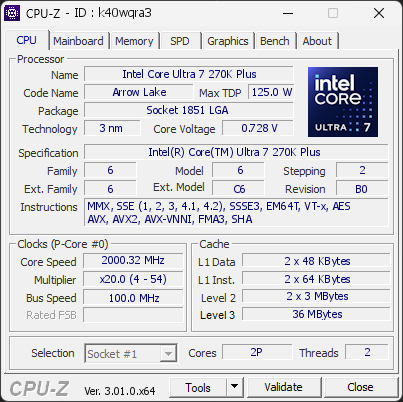
Your processor is currently operating with fewer threads than its official specifications. It is running with 2 threads, while this CPU normally supports 24 threads.
This limitation reduces performance and may indicate a configuration issue.
This situation can happen when Windows is set to limit the number of active cores, when BIOS settings are not at their defaults, or when a recent change has disabled certain CPU features. In rare cases, a BIOS update may be required for the system to properly detect the full capabilities of the processor.
We recommend checking Windows’ advanced boot options (msconfig) to ensure all cores are enabled. You should also load the default settings in your BIOS to restore proper CPU configuration.
Your RAM is not running in dual-channel mode. This isn’t an issue, but you could gain some extra performance with the proper configuration.
If you have two modules, placing them in the correct slots on the motherboard usually enables dual channel. If you only have one module, adding a second one will activate it automatically.
Your graphics card (NVIDIA GeForce GT 1030) is detected on the PCI bus, but no manufacturer driver is bound to it. Windows has fallen back to its generic display driver.
This usually follows a failed or interrupted driver installation, a driver removed by a system update, or a card fitted without installing its driver. 3D acceleration is unavailable on this card, so games and GPU-accelerated applications either fail to start or run on another graphics adapter.
Install the latest driver for this card: NVIDIA Drivers If a previous installation failed, uninstall the existing driver first, then reinstall.
This PC encountered 2 unexpected crash(es) (BSOD, blue screen) in the 30 days before this validation, the most recent on 2026-10-24.
Crashes like these are often caused by a faulty driver, unstable overclocking or memory settings, overheating, or failing hardware.
Make sure Windows and your drivers are up to date. If the PC is overclocked, try returning to stock settings. The BSOD Details button in the Software section lists each crash.
Windows reports 1 device(s) that are not working correctly. A device in this state is either unavailable or running in a degraded mode, and Windows will keep retrying it at every boot.
This usually comes from a driver that failed to load or was stopped after an error: a bad or outdated driver, a device that is not seated properly, or a component that is starting to fail.
Open the Device Manager to see which devices are flagged, then reinstall or update their drivers from the manufacturer's website. If a device keeps failing after a clean driver install, reseat it and test it on another port or slot. The Drivers button in the Software section lists every affected device.
Your antivirus (Windows Defender) is currently turned off, so this PC is not actively protected against viruses and other malware.
Protection may have been turned off manually, or disabled by another program.
Open Windows Security and turn protection back on, or make sure an antivirus of your choice is active.

Scan this QR code
To open this page on your phone
Previous validations from this PC
Unexpected crashes (BSOD) (5)
Boot Time details
Hardware errors (WHEA)
No hardware errors recorded in the Windows event log.
Driver problems
3 devices need attention, 1 more ignored.
Flagged processes
20 running processes, none flagged.
Inform a support service
If a partner support service is helping you with this PC, enter the service code they gave you to send them this validation. A valid service code is required.